
We’ve updated Insight based on your feedback! Get a richer picture of your student community with new and improved analytics and an updated Dashboard. Don't worry—you can still find everything from the "Classic" Dashboard on the Community activity page.
What’s new
We updated the Dashboard with new metrics and simplified controls to show data at-a-glance.
We added three new Analytics pages for deeper exploration: Trending terms, Community activity, and Popular tags.
We moved date and population filters from the Dashboard to the new Analytics pages for more detailed analysis.
We’ve improved our trends and sentiment analysis algorithms to provide more precise and relevant information.
You can find the metrics from the “Classic” Dashboard on the Community activity page
Only users who could see the Dashboard previously can see the new Dashboard and Analytics pages. If you have questions about user privileges, please contact us.
Dashboard
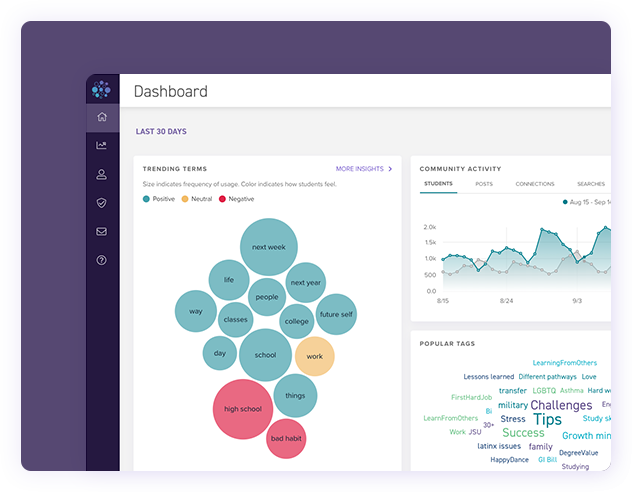
The new Dashboard offers a snapshot of your community over the past 30 days.
Click “More insights” to jump to a dedicated page with more data and controls to filter by date and various student profile characteristics. You can also find these dedicated Analytics pages in the Main navigation on the left of the screen.
Trending terms
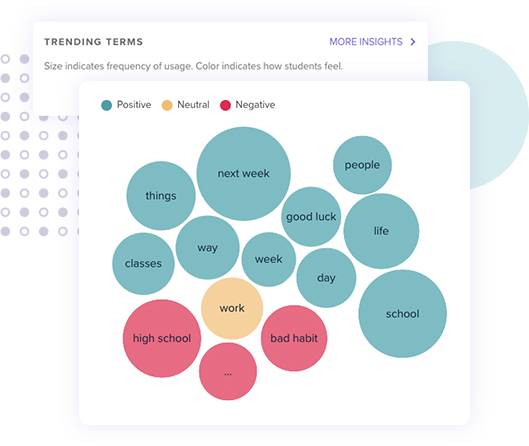
Learn what your students are talking about and how they feel.
We've enhanced our trends algorithm to focus only on the most relevant words and phrases in each student post. We’ve also added advanced sentiment analysis to show if students are speaking positively or negatively about a given term.
In the chart, the size of the bubble indicates how frequently a word or phrase occurred as a keyword in a post, comment, or student bio. Color indicates whether students expressed mostly positive, neutral, or negative sentiments toward that keyword.
On the Trending terms page, you can filter by date range and a variety of student populations and characteristics. Select a term to view posts and comments containing the term.
Coming soon: Select a term for additional usage and student population analysis.
Community activity
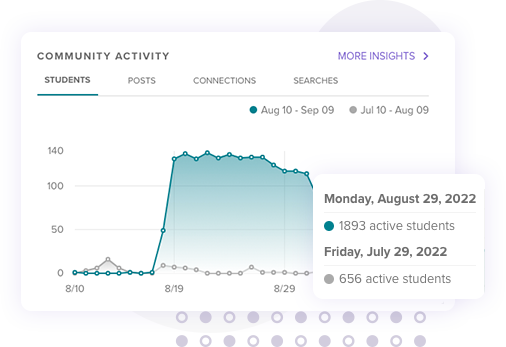
Keep a pulse on student engagement and compare activity over time.
On the Community activity page, you can filter by date and student population. Filtering by date will update the previous date range as well. For example, if you filter to the last 3 months, you’ll also see a comparison to the 3 months before that.
Select “Switch to Classic” to view the activity metrics from the “Classic” Dashboard page, including detailed breakdown lists of the data shown in the activity chart.
Popular tags
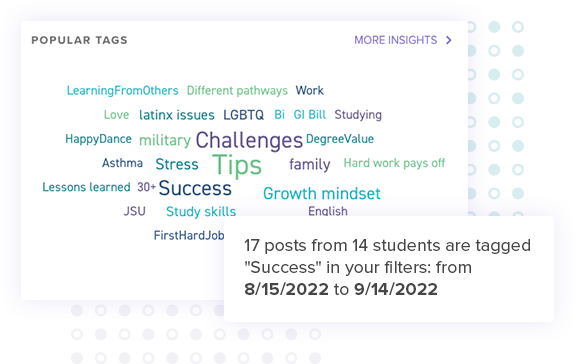
Tags reveal how students categorize their posts.
On the Popular tags page, you can filter by date range and a variety of student populations and characteristics. Select a tag to view posts with that tag in your filters.
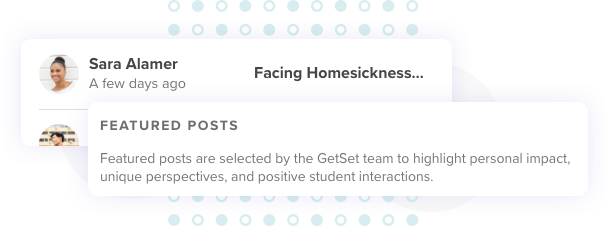
Featured posts
See highlights from the community at a glance.
Featured posts are hand picked examples of good advice, inspiring stories, and students making good connections.