

| Frequently asked questions
Canvas
Trouble with Canvas?
Those having technical issues with Canvas should submit a Service Now ticket. You can do so by going to your MyASU and clicking the Service Center tab. Then, you can either search for an article on the issue or submit a new case.
How do I add GetSet Analytics to my course shell?
The "GetSet Analytics" link is used by instructors to access Insight, GetSet's dashboard tool. “GetSet Analytics” for instructors can be added to your course navigation list, which is located on the left-hand-side of Canvas.
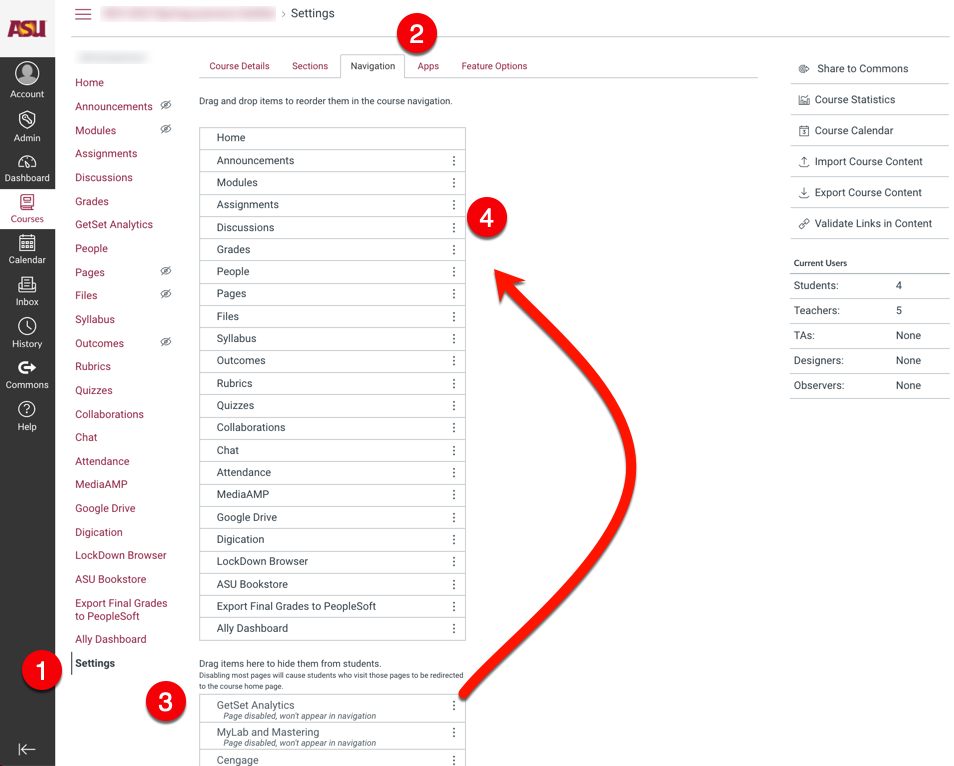
From the home page click Settings (1), then click on the Navigation tab (2). Next, click the “GetSet Analytics” item (3) and drag it to the top list (4). You can position this link anywhere on this navigation list.
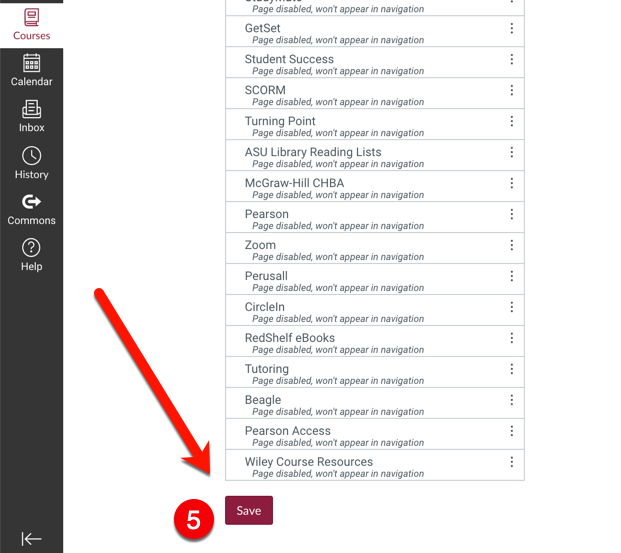
Once “GetSet Analytics” has been added to the top navigation list click Save at the bottom of the page (5).
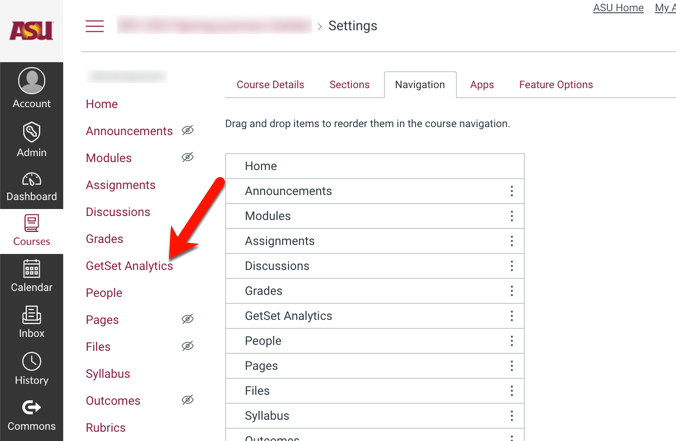
By default, instructors will be able to see the “GetSet Analytics” link in the navigation menu.
Nothing happens when I click the link in Canvas. What should I do?
GetSet for students and GetSet (Analytics) for instructors both open in new browser windows or tabs. If nothing happens when you click the link, a pop-up blocker may be preventing GetSet from opening. Disable your pop-up blocker or allow pop-ups from Canvas, and then try again.
If you or your students are still having trouble, please submit a help request and we'll work with you to solve the problem.
About GetSet
What is GetSet?
GetSet is an online community for ASU students to share stories about the successes and challenges of being in school. Students can trade tips, advice, and motivation.
GetSet is also used as a tool in ASU 101 courses. Students can complete a series of writing prompts as assigned by their instructor.
Check out a walkthrough of the student experience here. Note: While the GetSet portion of this walkthrough is applicable to all ASU students, it begins by launching via Canvas, which is specific to students using GetSet for their 101 class.
How do my students access GetSet?
For students who use GetSet in their 101 class, students must click the GetSet student link in their Canvas course. Launching GetSet via their Canvas link will connect their data with Insight, GetSet's reporting tool.
Students can return to GetSet any time via the link in their Blackboard or Canvas course or by downloading the GetSet app for iOS or Android.
For all other students, GetSet is accessible via a link in MyASU, the GetSet app for iOS and Android, or directly at https://asu.getset.com
Help topics
How can I leave feedback about GetSet?
We love hearing your feedback because it helps us improve. Visit our feedback page to let us know what’s on your mind. 1: https://training.getset.com/feedback/
Where should I go if I need help?
If you have questions or need help, [visit GetSet’s help page][2] to contact us. [2]: https://training.getset.com/help
Where should my students go if they need help?
If your students need help or have questions about GetSet, they can contact us via GetSet by opening the Account settings menu and selecting Help. They can also contact us via email at help@getset.com.
I used GetSet in the past. Has anything changed?
We're always improving and adding new features. You can alwas find the latest information about GetSet and using GetSet in Canvas on our PD Site. Our implementation page will tell you everything you need to know.